
cPanel is your hosting account's control panel: it lets you manage files, domains, email accounts, databases and SSL certificates without ever touching a command line. Most people logging in for the first time face dozens of icons and have no idea where to start — yet everything you do day to day fits into about fifteen tools. This guide walks through those fifteen operations in order, shows which section each lives in, and summarises what changed in cPanel during 2026.
Two panels get confused, and the difference is the level of authority:
So cPanel is the tenant's panel and WHM is the landlord's. If the reseller side interests you, we covered creating packages and accounts through WHM in what is reseller hosting.
You usually reach the panel at https://yourdomain.com/cpanel or through a one-click link in your hosting provider's client area.
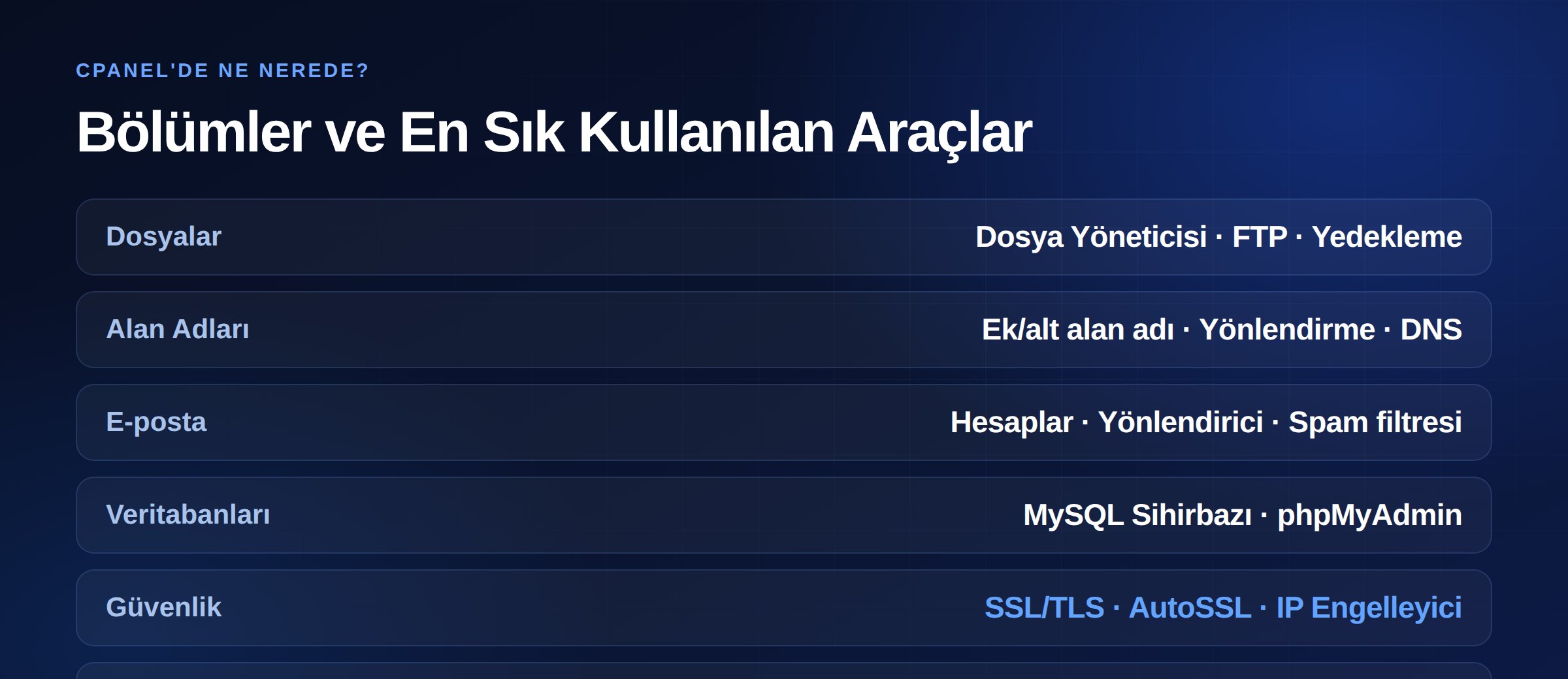
cPanel groups its tools under headings: Files, Databases, Domains, Email, Metrics, Security, Software, Advanced and Preferences. The current interface is the Jupiter theme.
Practical tip: rather than hunting through icons, use the search box at the top. Typing "ssl", "backup" or "cron" takes you straight to the tool. With the 2026 updates, search results became context-aware and a customisable action bar was added for operations you use often.
Manage your site's files from the browser: upload, download, edit, change permissions and extract archives. The one critical detail: your website's root directory is public_html. Files placed outside that folder will not appear on your site.
To see hidden files (such as .htaccess), enable "show hidden files" in the settings.
When moving many files, FTP is faster than the browser. Under Files → FTP Accounts you can create a user and restrict its directory. If you work with a web designer, give them an FTP account limited to the relevant folder rather than your main account password.
Files → Disk Usage shows which folder takes what. When your quota fills up, this is the first place to look — the culprit is usually old backups, log files or a mailbox.
Lets you host a second site on the same account. An addon domain gets its own folder and behaves like an independent site. Your plan needs to include addon domain allowance.
Addresses such as blog.yourdomain.com or test.yourdomain.com are created here. It is the most practical way to trial a site before going live.
Used when moving an old address to a new one. For permanent moves choose a 301 redirect for SEO reasons; 302 is for temporary situations. Picking the wrong type keeps the old address in search indexes.
DNS records (A, CNAME, MX, TXT) are a separate topic — we covered all of them with examples in our DNS records guide.
Under Email → Email Accounts you create business addresses such as [email protected], each with its own quota. Using email on your own domain makes a visible difference in trust compared with a free consumer address.
Forwards mail sent to one address on to another. You might forward [email protected] to a team member's inbox. It is the cheapest way to multiply addresses without creating extra mailboxes.
Sends automatic replies during holidays or busy periods, with a start and end date.
cPanel's spam filter screens incoming mail. But the more critical issue is whether your outgoing mail arrives at all. Since February 2024, major providers have required authentication records such as SPF and DKIM, and reject non-compliant mail. The Email Deliverability tool in cPanel's email section shows whether your domain's records are correct and suggests fixes. The 2026 releases added DMARC management and BIMI support.
We explained what these records mean and how to set them up in our DNS records guide.
Installing WordPress, WooCommerce or a custom application requires a database first. The MySQL Database Wizard handles the database, the user and the privileges in three steps — far fewer mistakes than doing it manually.
Critical detail: after creating the user, do not forget to add it to the database and grant privileges. That omission is the most common cause of "cannot connect to database" errors.
Used to view, export and import database content. When migrating a site you export the database as .sql here and import it on the new server. Take an export before any change — phpMyAdmin has no undo.
HTTPS is no longer optional; WordPress's own requirements list it as required for every install. In cPanel you manage certificates under Security → SSL/TLS.
AutoSSL issues and renews certificates automatically. Certificates from cPanel's own provider are valid for 90 days, and the system attempts renewal when they are within 15 days of expiry. With the Let's Encrypt plugin, renewal starts within 29 days. The 2026 updates cut issuance from 24 hours to minutes and added wildcard support — though AutoSSL does not automatically renew certificates containing wildcard domains.
If your site shows a "not secure" warning, check in this order: does a certificate exist, is the domain included in it, and is anything on the page still loading over http://?
Security → IP Blocker lets you cut off specific IP addresses. Handy for blocking an abusive IP or a persistent spam source. But remember this is not DDoS protection — volumetric attacks are stopped at the network layer; see what is a DDoS protected server.
The 2026 releases added a security score widget offering recommendations across two-factor authentication, password strength, SSL status and email authentication, plus support for passkeys and hardware security keys (FIDO2/WebAuthn).
Files → Backup Wizard takes either a full account backup or a partial one covering just the home directory, databases or email forwarders.
The practical rule: full backups are for downloading, partial backups are for restoring. A full backup file cannot be restored from the panel — that requires server-side work. Partial backups (home directory, database) can be restored from the panel.
Even if your provider takes server-level backups, keep your own copy. Provider backups protect against infrastructure failure; your own copy protects against a database you deleted by mistake or an update that broke something.
This is the largest performance gain available from a single setting. Under Software → MultiPHP Manager, select your domain and change its PHP version. WordPress officially recommends PHP 8.3 or greater; 7.4 and below have reached end of life.
The MultiPHP INI Editor lets you change values such as memory_limit, upload_max_filesize and max_execution_time from the panel — needed when uploading large media or running a heavy plugin.
Back up before changing versions, and test first if you run an old theme or an abandoned plugin. We covered the whole performance side in 12 ways to speed up your WordPress site.
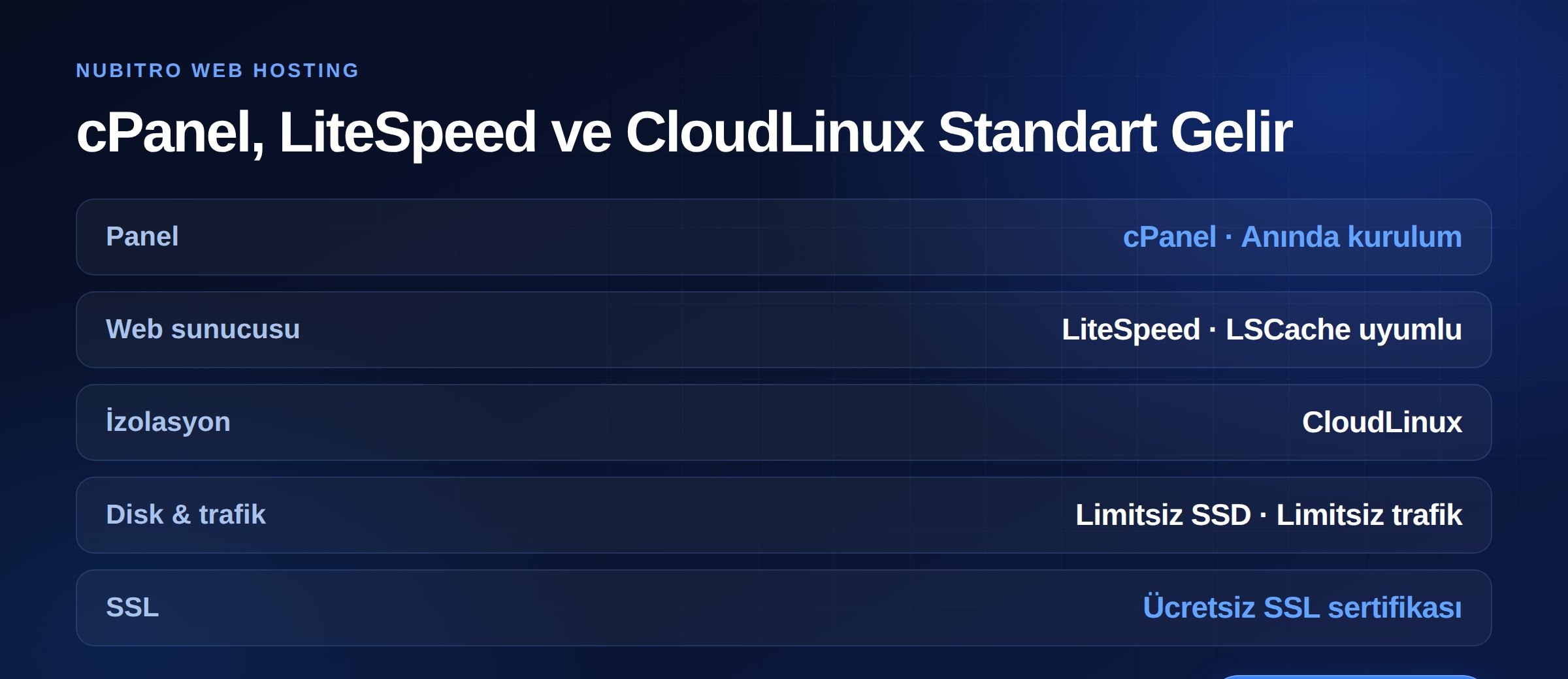
Nubitro web hosting plans include cPanel as standard, with panel access provisioned instantly after ordering. The infrastructure runs LiteSpeed for performance and CloudLinux for account isolation — so a neighbouring site's load does not slow yours down.
Plans include unlimited SSD disk space, unlimited monthly traffic, a free SSL certificate and unlimited email and FTP accounts. If your site is currently with another provider, cPanel-to-cPanel migration is free.
Review the plans on our professional SSD hosting and cheap SSD hosting pages, and register your domain from domain search. For everything else, visit the Nubitro homepage.
The cPanel password is usually reset from your hosting provider's client area. On reseller hosting, your reseller resets it through WHM. After changing it, remember to update your FTP client and any saved connections.
The three most common causes: the files were placed outside public_html, the domain's nameservers still point at the old provider, or a DNS change has not propagated yet. Check those three in order.
You can, but then it opens at yourdomain.com/folder. For it to open at the main address, files need to sit directly in public_html, or you need an addon domain or a redirect.
Common causes: the domain no longer points at this server, access to the validation file is blocked (by a redirect or an .htaccess rule), or the certificate contains a wildcard domain — AutoSSL does not auto-renew those. The error message on the SSL/TLS Status screen usually names the reason directly.
No. Full backups are for downloading and archiving; restoring them happens server-side. What the panel can restore are partial backups: home directory, MySQL databases and email forwarders.
With a current theme and maintained plugins it is usually fine. The risk sits in abandoned plugins and very old themes. The right order: back up, set up a test copy on a subdomain if possible, try it there, then change production.
public_html — files outside it will not appear. Turkey (Türkçe)
 Worldwide (English)