
SinusBot is a music bot that lets you listen to music together with friends on TeamSpeak 3 or Discord, managed through a web interface and extensible with community scripts. Installing it is more technical than it looks: because the bot runs a real TeamSpeak client in the background, your server needs graphics libraries and a virtual display — which is why it does not work on every virtual server. This guide covers the requirements, three installation routes, first-run configuration and the mistakes people make most often.
SinusBot joins your voice channel and plays music. In its own words, it lets you listen to music together with your friends on either TeamSpeak 3 or Discord. What stands out:
One detail worth knowing: SinusBot has been on the 1.0.0-beta release line for a long time. It is widely used and still developed, but the "beta" label remains — factor that into a production decision.
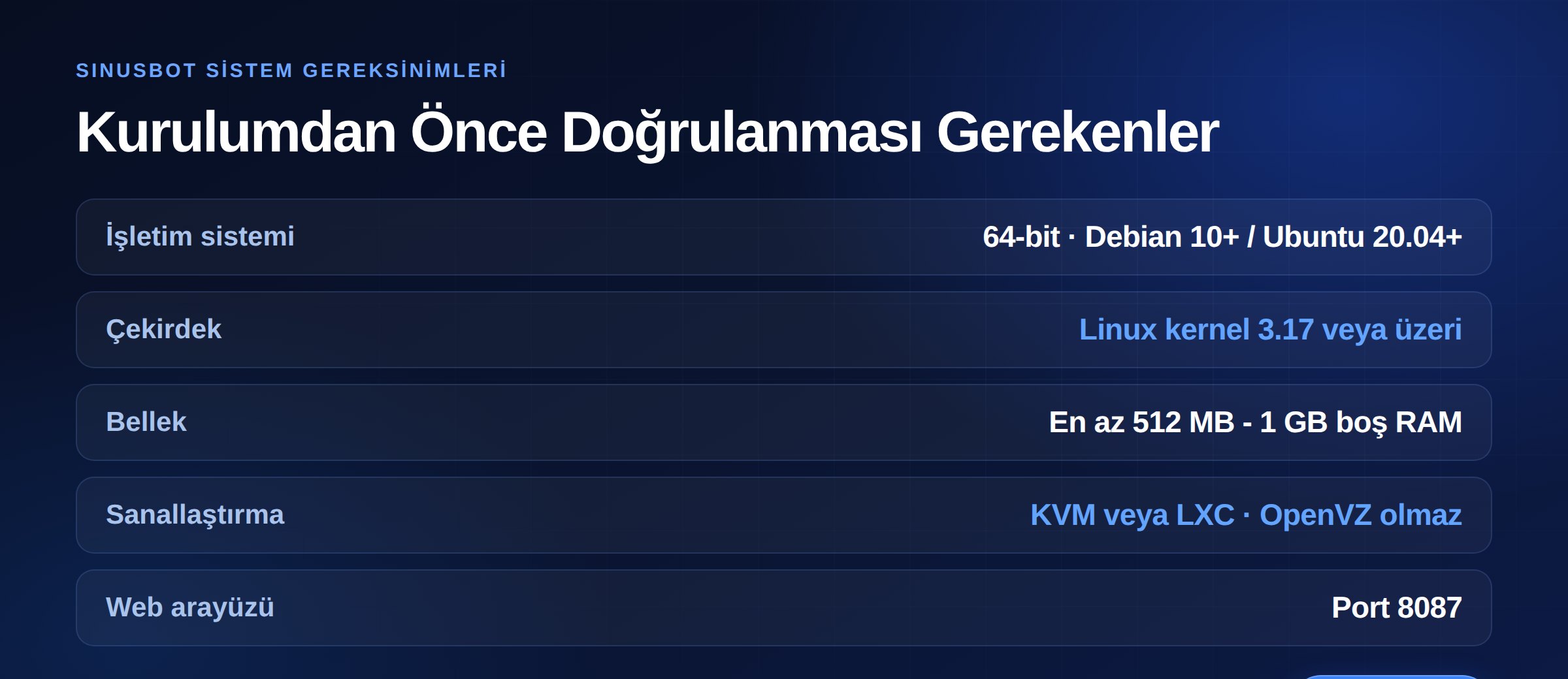
Most installation failures come from not checking requirements first. What the official documentation specifies:
uname -a.That last point matters: some budget VPS plans still run on OpenVZ, and SinusBot does not work properly there. Asking about virtualization type before buying is far cheaper than troubleshooting afterwards. We covered the differences in our guide on the difference between VDS and VPS.
If you are new to Linux or simply want everything installed for you, the official documentation recommends the installer script. It handles dependencies, the TeamSpeak client and the service definition in one pass.
For those who want to see what goes where. Steps below.
An official Docker image exists. If you would rather not deal with system dependencies this is the cleanest route — particularly useful for isolation when other services share the server.
SinusBot runs a real TeamSpeak client in the background, which means it needs a virtual display and graphics libraries. The required packages:
x11vnc xvfb libxcursor1 ca-certificates curl bzip2 libnss3 libegl1-mesa x11-xkb-utils libasound2 libpci3 libxslt1.1 libxcomposite1
On Ubuntu 18.04 you must enable the universe repository for x11vnc and xvfb.
adduser --disabled-login sinusbot
Do not run the bot as root. This is an explicit rule in the documentation. The web interface is an internet-facing service, and running one as root is unnecessary risk.
Download the latest release, extract it under /opt/sinusbot and give ownership to the user you created.
The bot uses a real client to connect. The documentation recommends version 3.5.6. The client path is typically:
/opt/sinusbot/TeamSpeak3-Client-linux_amd64/ts3client_linux_amd64
Copy SinusBot's TeamSpeak plugin into the client's plugins directory. Skip this and the bot connects but audio does not work — one of the most frequent installation mistakes.
Set the TeamSpeak client path, the listen address and any other required settings here.
On first run the bot generates a password for the admin user and prints it to the console. Save it immediately — like a TeamSpeak privilege key, missing it means extra work later.
What to know on the Docker side:
/opt/sinusbot/scripts and /opt/sinusbot/data.1.0.0-beta.6-...), alongside latest and a Discord-only discord tag.Install without defining volumes and your playlists, settings and scripts disappear on the first upgrade. That is the most expensive mistake in Docker installs.
Once installed, reach the interface at http://server-ip:8087. The username is admin and the password is the one generated on first run.
What to do at first login:
After the bot connects, a few server-side settings are needed:
We covered server groups, channel types and the permission layers in full in how to configure a TeamSpeak 3 server.
The same bot can run on Discord. You create a bot application, obtain a token and enter it in the SinusBot interface. If you only need Discord, the official Docker image's discord tag gives you a lighter install — no TeamSpeak client or graphics dependencies required.
Most guides skip this, but as a community owner you need to know it.
SinusBot can play local audio files and stream from external sources. But broadcasting copyrighted music to a community sits on different legal ground than personal listening. Playing music with a closed group of friends is not the same as streaming to an open community that recruits members and generates revenue.
Automated downloading or streaming from third-party platforms may also conflict with those platforms' terms of service. A practical approach:
This is general information, not legal advice.
SinusBot is not heavy, but it is not free either: running a TeamSpeak client and virtual display in the background consumes memory even when idle. Practical notes:
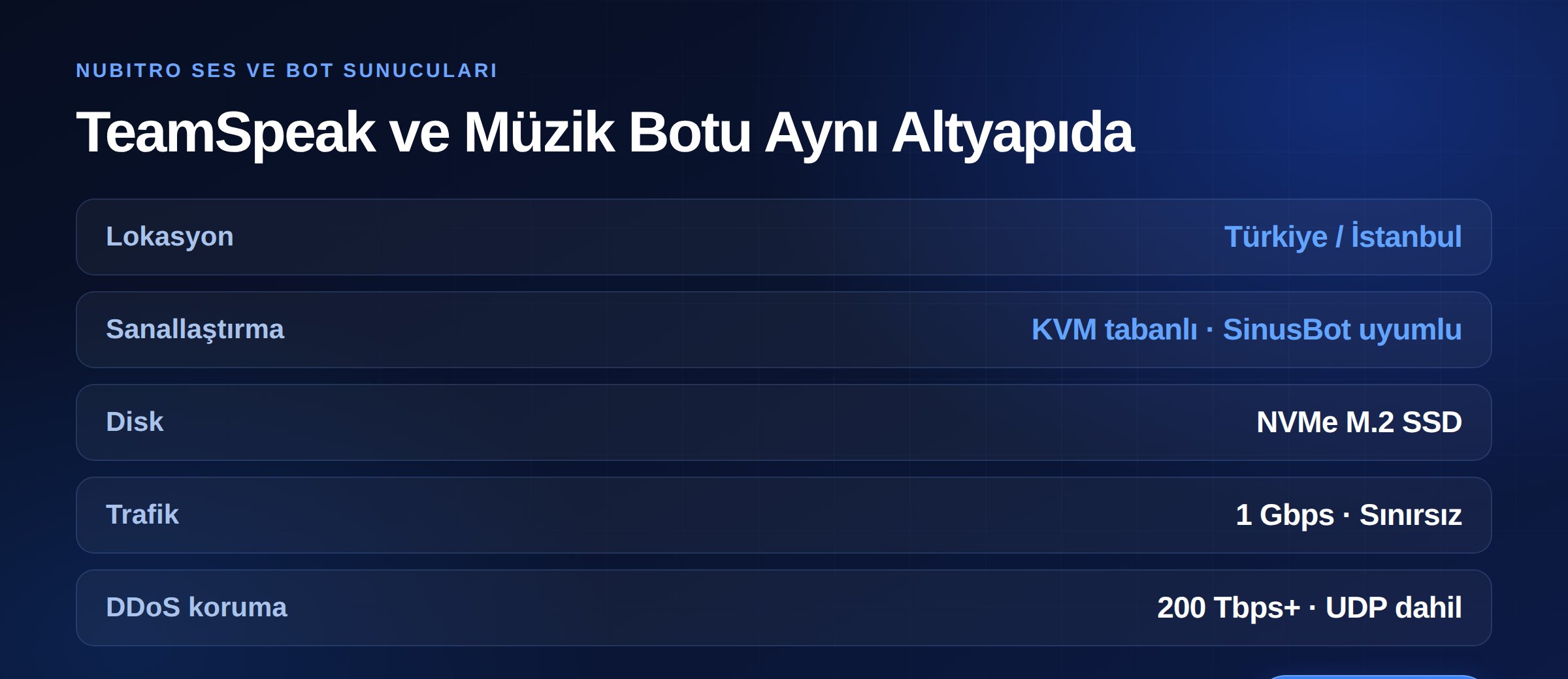
The most common place a SinusBot install fails is virtualization type. On Nubitro servers, resources are assigned through hardware partitioning on KVM-based infrastructure — so the OpenVZ problem the documentation warns about does not arise.
Servers run in Istanbul, Turkey with NVMe M.2 SSD storage and 1 Gbps unmetered traffic, and the infrastructure carries 200 Tbps+ DDoS protection as standard. Since voice traffic runs over UDP, that protection covering UDP matters.
Review voice plans on our TeamSpeak 3 server hosting page, or see Ryzen VDS if you want to run the bot on your own server. For everything else, visit the Nubitro homepage.
No. The bot runs its own processes and a virtual display, so it needs a server with root access. Shared hosting is unsuitable; you need a KVM-based VDS or a pre-installed bot package.
The most common cause is the SinusBot plugin not being copied into the TeamSpeak client's plugins directory. Second, an incorrect TeamSpeak client path in config.ini. Third, the bot's server group lacking permission to transmit audio.
It can be reset through the bot's data. On a pre-installed package, your provider's panel usually offers a reset option.
Yes. The documentation covers reverse proxy setup with NGINX or Apache 2 in a dedicated section, which lets you use TLS and avoid exposing port 8087 directly. For the DNS side, see our DNS records guide.
Yes, SinusBot supports both. If you only need Discord, the Docker discord tag offers a lighter image.
Your server's memory and CPU decide. Each instance runs its own TeamSpeak client, so memory use grows per instance. Plan RAM accordingly if you need more than a few.
plugins.scripts and data as volumes. Turkey (Türkçe)
 Worldwide (English)